Best IPTV for Xbox and PlayStation: Console Streaming Guide 2026
Your Xbox Series X, Xbox Series S, PlayStation 5, or even older Xbox One and PS4 can double as a powerful IPTV streaming device, and learning how to set up IPTV on Xbox and PlayStation opens up a world of entertainment without buying any additional hardware. If you already have a gaming console connected to your TV, you have everything you need to access over 29,500 channels through ManIPTV.
Gaming consoles are actually excellent IPTV devices. They have powerful processors, strong WiFi and Ethernet connectivity, HDMI output to your TV, and app stores with IPTV-compatible applications. Many gamers do not realize their console can replace a cable box entirely, delivering live sports, movies, news, and international programming alongside their gaming library.
This guide covers setup instructions for both Xbox and PlayStation consoles, recommended apps, optimization tips, and everything you need to turn your gaming console into a premium IPTV streaming station.
Why Use Your Gaming Console for IPTV
The Xbox Series X and PlayStation 5 are among the most powerful consumer devices connected to your TV. Their processors easily handle 4K video decoding, their network hardware supports fast and stable connections, and their operating systems allow third-party apps. Using your console for IPTV eliminates the need to buy a separate streaming device and reduces HDMI port clutter.
Modern consoles also support features that enhance the IPTV experience. Quick resume on Xbox lets you switch between gaming and IPTV almost instantly. The PS5's fast SSD means apps load in seconds. Both consoles support Bluetooth controllers that can navigate IPTV apps, though a media remote is recommended for the best experience.
Setting Up IPTV on Xbox Series X and Series S
Xbox consoles run a modified version of Windows, which gives them access to several IPTV player apps through the Microsoft Store. Here is how to get ManIPTV running on your Xbox.
- From the Xbox home screen, open the Microsoft Store by navigating to the Apps section.
- Search for MyIPTV Player or IPTV Smarters. Both are available on the Microsoft Store and work well with ManIPTV.
- Download and install your chosen app. Open it once installation is complete.
- In the app settings, add a new playlist using the Xtream Codes API method. Enter the server URL, username, and password provided by ManIPTV.
- Wait for the channel list to populate, then browse categories and start watching.
MyIPTV Player is the most popular choice for Xbox users because it supports EPG, favorites, and has a controller-friendly interface. The app is free to download with an optional premium upgrade that removes ads and adds features.
Setting Up IPTV on PlayStation 5 and PS4
PlayStation consoles do not have native IPTV apps in the PlayStation Store, but there are effective workarounds that deliver a great experience.
- The primary method is using the built-in web browser. Open the PS5 or PS4 web browser and navigate to a web-based IPTV player that supports M3U playlists.
- Alternatively, install the Plex app from the PlayStation Store and use the Plex IPTV plugin to stream your ManIPTV channels through the Plex interface.
- For the best PS5 IPTV experience, use the console's screen mirroring feature to cast from an Android phone running a full IPTV app to your PlayStation.
While the PlayStation setup requires a few more steps than Xbox, the streaming quality is excellent once configured. The PS5's powerful hardware ensures smooth 4K playback without buffering.
Recommended IPTV Apps for Gaming Consoles
For Xbox users, MyIPTV Player stands out as the top choice. It supports M3U and Xtream Codes API connections, includes an EPG viewer, allows you to create favorite channel lists, and has an interface that works well with a controller. The app handles ManIPTV's 29,500 plus channel list without performance issues.
IPTV Smarters is another strong option for Xbox. Its interface will be familiar to anyone who has used the app on other platforms, and it supports all the same features including catch-up TV, VOD browsing, and multi-format playlist support.
For PlayStation users, the Plex-based approach offers the most polished experience. Plex's interface is designed for big-screen use and controller navigation, making it comfortable for extended viewing sessions. The trade-off is a slightly more complex initial setup.
Optimizing Your Console for IPTV Streaming
To get the best IPTV performance from your gaming console, start with your network connection. Both Xbox and PlayStation support Ethernet connections, and using a wired connection instead of WiFi dramatically improves streaming stability. This is especially important for 4K content and during peak internet usage hours.
In your console's network settings, you can run a speed test to verify your connection. You want at least 25 Mbps for 4K IPTV streaming and 10 Mbps for 1080p. If your speeds are lower, try connecting directly to your router with an Ethernet cable.
Adjust your console's video output settings to match your TV's capabilities. If you have a 4K TV, make sure 4K output is enabled. If you have an older 1080p TV, setting the output to 1080p prevents unnecessary upscaling that can introduce lag.
Gaming and IPTV: The Perfect Combination
One of the best things about using your console for IPTV is the seamless transition between gaming and watching live TV. Finish a gaming session, switch to the IPTV app, and you are watching live sports or your favorite show within seconds. No changing inputs, no grabbing a different remote, no switching devices.
Xbox's snap and picture-in-picture features on some models let you watch IPTV while gaming or using other apps. Imagine watching a football game in a corner of your screen while playing a casual game. This multitasking capability makes the Xbox an exceptionally versatile entertainment hub.
For households where the TV is shared between gamers and non-gamers, having IPTV on the console means everyone can use the same device for their entertainment needs. Parents can watch the news while the kids take a gaming break.
Media Remotes for a Better IPTV Experience
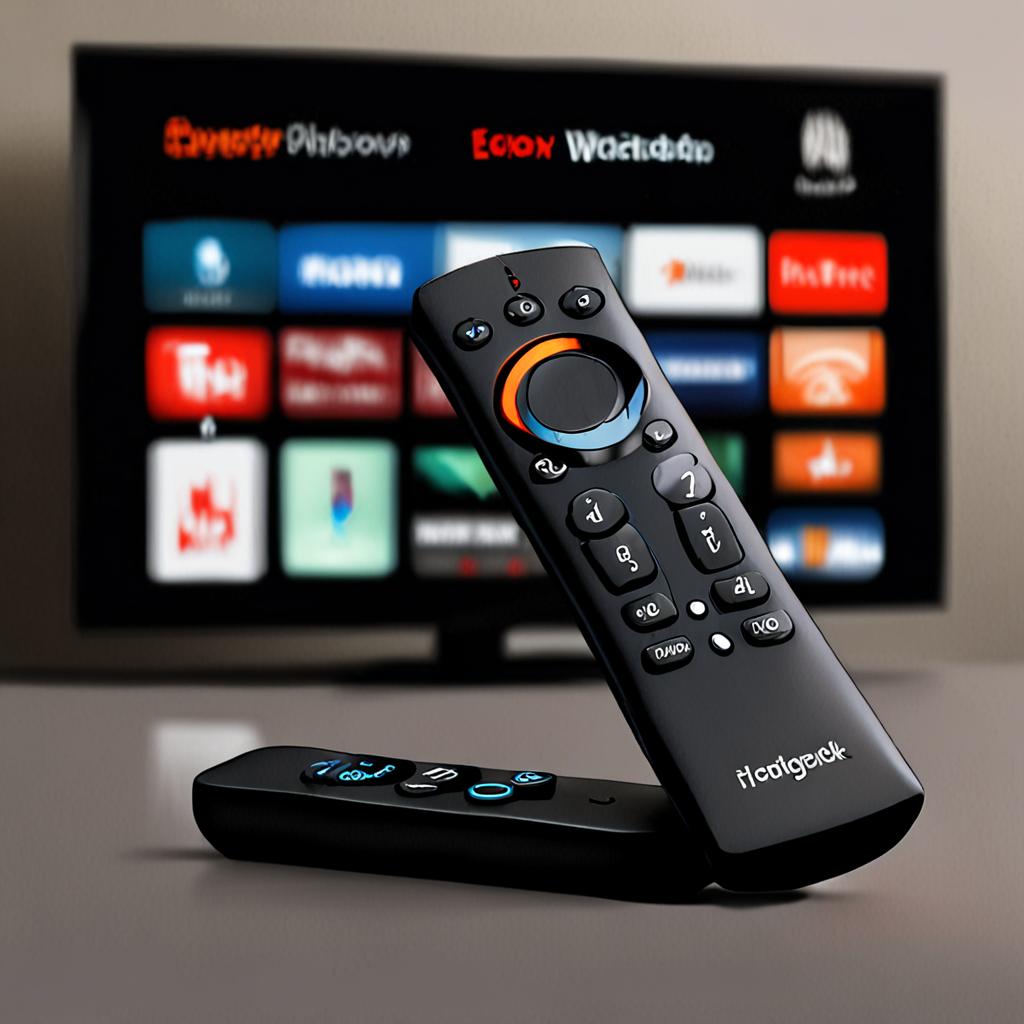
While you can navigate IPTV apps with a game controller, a dedicated media remote makes the experience much more enjoyable. Microsoft offers an official Xbox Media Remote, and several third-party options exist for PlayStation. These remotes include dedicated buttons for play, pause, fast forward, rewind, and volume that make controlling IPTV apps feel natural.
If you prefer voice control, both Xbox and PlayStation support voice assistants. You can use voice commands to open apps and perform basic navigation, though full IPTV app control via voice is limited on both platforms.
Troubleshooting IPTV on Gaming Consoles
If your IPTV app buffers or stutters on your console, the most common cause is network congestion. Other devices on your network downloading updates, streaming content, or running cloud backups can consume bandwidth. Prioritize your console in your router's QoS settings or schedule downloads during off-peak hours.
App crashes on consoles are typically resolved by clearing the app cache or reinstalling the application. On Xbox, go to My Games and Apps, find the IPTV app, press the menu button, and select Manage App to clear saved data. On PlayStation, delete and reinstall the app from the PlayStation Store.
If your EPG does not load, ensure your IPTV app has the correct EPG URL configured. ManIPTV provides EPG data that is compatible with all major IPTV player apps, so the issue is usually a configuration error rather than a data availability problem.
Try ManIPTV on Your Gaming Console
Transform your Xbox or PlayStation from a gaming device into a complete entertainment center. ManIPTV offers a free 24-hour trial so you can test the service on your console before subscribing. See how smoothly 29,500 plus channels stream on your gaming hardware.
Contact ManIPTV on WhatsApp at +1 (559) 508-2154 to activate your free trial today. With 29,500 or more channels, 4K streaming, 99.9 percent uptime, and anti-freeze technology, ManIPTV turns your gaming console into the only entertainment device you need.
Ready to Start Streaming?
Get instant access to 20,000+ live channels, 4K streaming, and 80,000+ movies and series.
View Plans & Pricing