How to Set Up IPTV on Roku: Complete 2026 Guide
Roku is one of the most popular streaming platforms in North America, with over 80 million active accounts. If you own a Roku TV, Roku Streaming Stick, or Roku Express, you have probably wondered whether you can use it for IPTV. The answer is yes, but the IPTV Roku setup process is a bit different from Fire TV Stick or Android devices because of how Roku handles third-party apps.
Roku's official channel store does not include most dedicated IPTV player apps like IPTV Smarters Pro or TiviMate. However, there are several reliable methods to get IPTV working on your Roku device, and this guide walks you through every option step by step.
Understanding Roku's IPTV Limitations
Before diving into setup methods, it helps to understand why Roku handles IPTV differently than other platforms. Roku maintains a curated channel store and has historically been restrictive about which apps are allowed. Most IPTV player apps are not available in the official Roku Channel Store. However, Roku does allow sideloading of development channels and also supports screen mirroring, which opens up IPTV viewing through alternative methods.
The good news is that these workarounds are well-established, reliable, and used by thousands of IPTV viewers daily. You do not need any technical expertise to set them up.
Method 1: Screen Mirroring from Your Phone or Computer
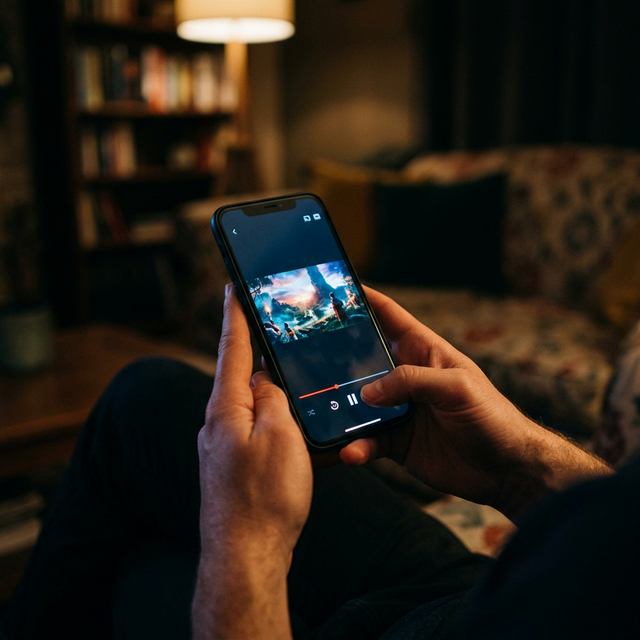
The simplest way to watch IPTV on Roku is by screen mirroring from an Android phone, Windows laptop, or iPhone. This method requires no app installation on the Roku itself and works with any IPTV app installed on your mobile device.
- Step 1: Ensure your Roku device and your phone or computer are connected to the same WiFi network.
- Step 2: On your Roku, go to Settings, then System, then Screen Mirroring, and set it to Always Allow or Prompt.
- Step 3: On your Android phone, open Settings, then Connected Devices or Display, and select Cast or Screen Mirror. For iPhones, use the Apple AirPlay option if your Roku supports it (Roku OS 9.4 and later).
- Step 4: Select your Roku device from the list of available devices.
- Step 5: Open your IPTV app (IPTV Smarters Pro, GSE Smart IPTV, or any M3U player) on your phone.
- Step 6: Start playing a channel. The video will appear on your TV through the Roku.
The advantages of screen mirroring are simplicity and the ability to use any IPTV app you prefer. The disadvantage is that your phone's screen must stay on during viewing, and there can be a slight delay between the source and TV display. Battery drain on your mobile device is also a consideration for extended viewing sessions.
Method 2: Using M3U Playlist Players from the Roku Store
While dedicated IPTV apps are limited on Roku, there are M3U playlist player apps available in the official Roku Channel Store. These apps can load M3U playlist URLs provided by your IPTV service.
- Step 1: On your Roku, navigate to the Roku Channel Store by pressing the Home button and selecting Streaming Channels or Search.
- Step 2: Search for M3U Playlist Player, IPTV Player, or Smart IPTV Player. Several options may appear.
- Step 3: Install the app and open it.
- Step 4: Contact ManIPTV support on WhatsApp at +1 (559) 508-2154 to get your M3U playlist URL.
- Step 5: Enter the M3U URL into the app's playlist field.
- Step 6: Wait for the channel list to load. Depending on the number of channels, this may take 30 seconds to a few minutes.
- Step 7: Browse the channel categories and start watching.
This method provides a native Roku experience with remote control support and no need for a second device. The EPG (electronic program guide) functionality may be limited compared to dedicated apps on other platforms, but the core viewing experience is solid.
Method 3: Adding a Development Channel (Sideloading)
Roku allows developers to sideload channels that are not in the official store. Several IPTV player apps are available as development channels that you can add to your Roku with a simple URL.
- Step 1: On your computer or phone browser, go to my.roku.com and sign in to your Roku account.
- Step 2: Navigate to Manage Account, then Add a Channel with a Code.
- Step 3: Enter the channel access code for the IPTV player you want to install. Popular options include various IPTV-compatible players that share access codes on their websites.
- Step 4: Click Add Channel and confirm. The channel will be added to your Roku within 24 to 36 hours, though it often appears within minutes.
- Step 5: On your Roku, press Home, scroll right to find the newly added channel, and open it.
- Step 6: Enter your ManIPTV credentials or M3U playlist URL to start streaming.
Development channels work just like any other Roku channel. They appear in your channel list, respond to the Roku remote, and launch quickly. The only difference is that they are not vetted through Roku's official review process.
Method 4: Using a Roku TV with an External IPTV Device
If you have a Roku TV rather than a Roku streaming stick, you have an additional option that many viewers overlook. Simply plug an Amazon Fire TV Stick, Android TV box, or any other streaming device into one of the HDMI ports on your Roku TV. Switch to that HDMI input to access the full range of IPTV apps available on those platforms.
This might seem like it defeats the purpose of having a Roku TV, but it actually gives you the best of both worlds. You use the Roku interface for your regular streaming apps and switch to the HDMI input when you want to watch IPTV through a purpose-built app like TiviMate with full EPG support, recording capability, and multi-screen viewing.
Optimizing Your Roku for IPTV Streaming
Regardless of which method you choose, these optimization tips will improve your IPTV experience on Roku.
Keep your Roku firmware updated to the latest version. Updates often include performance improvements and bug fixes that benefit streaming quality. Go to Settings, System, System Update, and check for updates regularly.
If using WiFi, position your Roku within clear line of sight of your router. Roku devices, especially the Express and Stick models, have compact WiFi antennas that can struggle with signal penetration through walls. Using a 5GHz WiFi band provides better throughput for HD and 4K IPTV streaming compared to the more congested 2.4GHz band.
Clear the cache on your Roku periodically by pressing Home five times, then Up once, then Rewind twice, and Fast Forward twice on your Roku remote. This sequence triggers a system restart that clears temporary data and can resolve streaming issues.
Which Roku Model Is Best for IPTV?
Not all Roku devices offer the same performance for IPTV. The Roku Express is the most affordable but has limited processing power and only supports 1080p. The Roku Streaming Stick 4K offers a significant upgrade with 4K HDR support and faster WiFi. The Roku Ultra is the premium option with ethernet support, USB, and the most powerful processor, making it ideal for heavy IPTV use with large channel lists.
For the best IPTV experience, the Roku Streaming Stick 4K or Roku Ultra are recommended. The ethernet port on the Roku Ultra is particularly valuable for IPTV, providing the consistent connection speed that eliminates buffering.
Try ManIPTV on Your Roku Today
Ready to start watching IPTV on your Roku? ManIPTV offers a free 24-hour trial so you can test compatibility with your Roku device and preferred setup method. With over 29,500 channels, 4K streaming support, and 99.9 percent uptime, ManIPTV delivers the premium content your Roku was made to stream.
Contact the ManIPTV team on WhatsApp at +1 (559) 508-2154 to get your trial credentials and M3U playlist URL. The team can also walk you through the best setup method for your specific Roku model. Get started today and transform your Roku into the ultimate entertainment hub.
Ready to Start Streaming?
Get instant access to 20,000+ live channels, 4K streaming, and 80,000+ movies and series.
View Plans & Pricing